Automated Recurring Emails to Multiple Accounts for GMail
Am sure there are people with better solutions, but this is my recent journey trying to find a solution to do recurring emails to multiple accounts in GMail.
Silly as this may sound, there doesn’t seem to be a way to send out automated recurring emails to multiple accounts in GMail without third-party intervention. I also couldn’t find anything good for Google tasks the anseer being “Creating a recurring task for a group in Google Tasks is a bit tricky because Google’s native “Shared Tasks” (found in Google Chat Spaces) do not currently support the “Repeat” feature.” With some “workarounds.”
Yes, I did the usual AI inquiries — Gemini and Claude for me. Also I contacted our Google accounts admin who confirmed that he couldn’t find any such feature. We shared some solutions:
- Boomerang for Gmail: Offers “Send Later” with recurring options (daily, weekly, etc.) and other productivity features.
- IFTTT (If This Then That): Connects Gmail to other services for powerful triggers (e.g., send email when a new contact is added).
- RightInBox: Email productivity.
Security Issues
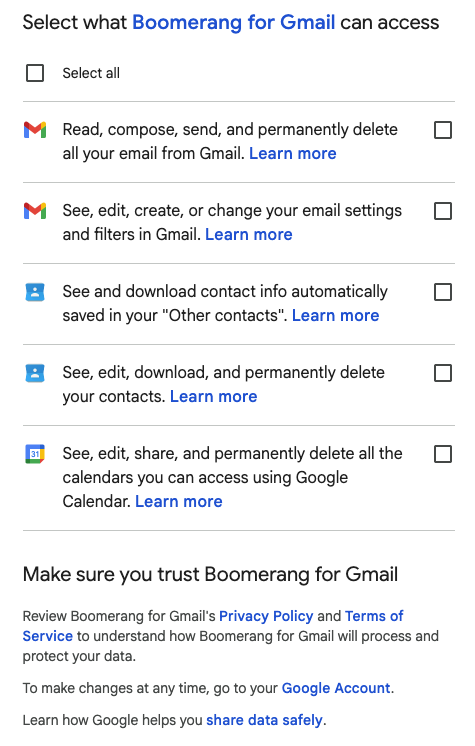
The Chrome plugins and GEoogle plugins don’t pass my company;s security measures. They want too much access, so these are a no-go (for what I tested).
Google Apps Script Solution
Curiously enough he said his research also said Apps Scripts were a solution.
- Google Apps Script: For advanced users who want custom code.
I have a few Google Apps Scripts for doing data mining — this sounded fun. I opened up VS Code and using the Gemini code assists plugin generated out a solution.
Also — Apps Script comes with everyone who has a Gmail. As a company, we are OK’d for Google measures on security.
Here’s the de-id solution I am running now. I am putting it in here in it’s raw form. I’ve noticed that the vibe coding results donm’t do very good cleanup/review without a few iterations — interesting, and means a lot of non-AI code review is necessary. Note for the two methods — one to do text emails, the other to do html emails, the comments are slightly diff. I just globalized some of the shared parameters to make it a little easier. Feel free to clean this up and curse my name.
// Javascript - Code.js
const recipients = "team@yourcompany.com";

const subject = "Weekly Team Reminder";
/**
 * Sends a recurring email to a predefined list of recipients.
 */
function sendRecurringEmail() {
  // --- Configuration ---
  // --- Text Body ---
  // Set the email body. You can use simple text.
  const body = "Team,\n\nPlease remember to do your task for this week.\n\nThank you.\n\nSpartacus";

  // --- Sending the Email ---
  try {
    MailApp.sendEmail(recipients, subject, body);
    Logger.log("Email sent successfully to: " + recipients);
  } catch (e) {
    Logger.log("Error sending email: " + e.toString());
  }
}

/**
 * Sends a recurring email with an HTML body to a predefined list of recipients.
 */
function sendRecurringHtmlEmail() {
  // --- Configuration ---
  // --- HTML Body ---
  // Create an HTML template for the email body for richer formatting.
  const htmlBody = `
    <html>
      <body>
        <h2>Weekly Reminder</h2>
        <br>
        <p>Team,</p>
        <br>
        <p>Please remember to do your task for this week.</p>
        <br>
        <p>Thank you.</p>
        <br>
        <p>Hannibal</p>
      </body>
    </html>
  `;

  // --- Sending the Email ---
  try {
    MailApp.sendEmail({
      to: recipients,
      subject: subject,
      htmlBody: htmlBody // Use the 'htmlBody' option for HTML content
    });
    Logger.log("HTML email sent successfully to: " + recipients);
  } catch (e) {
    Logger.log("Error sending HTML email: " + e.toString());
  }
}
Making the code work
Log into Google Apps Script.
Add your code into the Apps Script editor. Usually the platform wants to call it Code.js.
You can pick wich method you which to run.
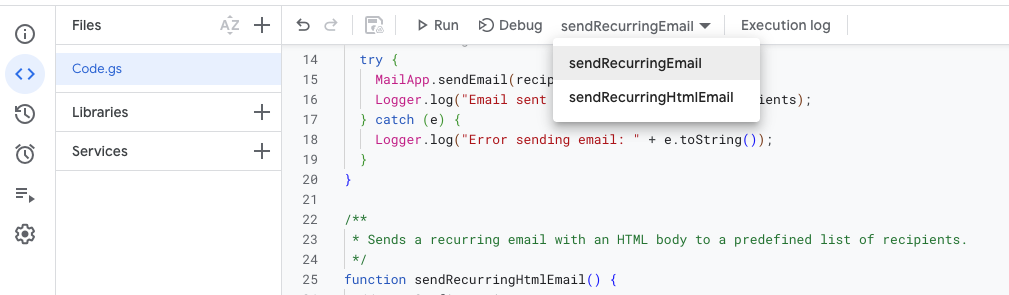
You do NOT need to Deploy the code for any of this, so ignore that. (I aske the AI about it, said no need).
Test your code with RUN. Usually I use my own email.
Adding a GMail group as the target
Now you can create a GMail group for the target. It’s pretty easy, just use Google Groups. It will allow you to create an email group. Add members and you’ll havee something with a special email like your-team@yourcompany.com.
I did try to use a contact grouping but those don’t have a recognizable email address, so more code would be needed in your script to mine that out. I found the use of groups simpler.
Make the Email Recurring
This is pretty cool — Apps Script has trigger functionality that can make this recurring.
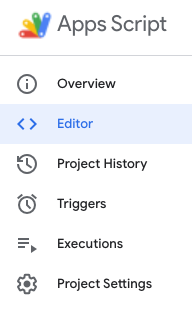
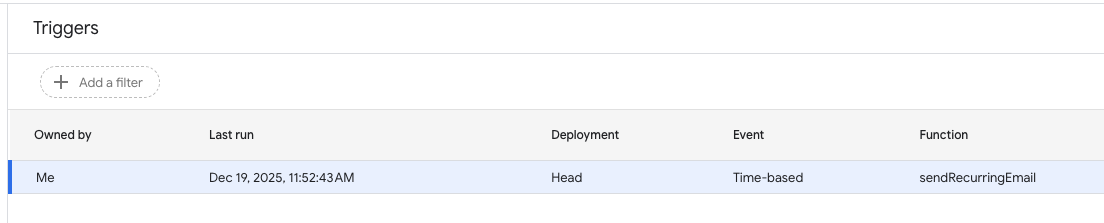
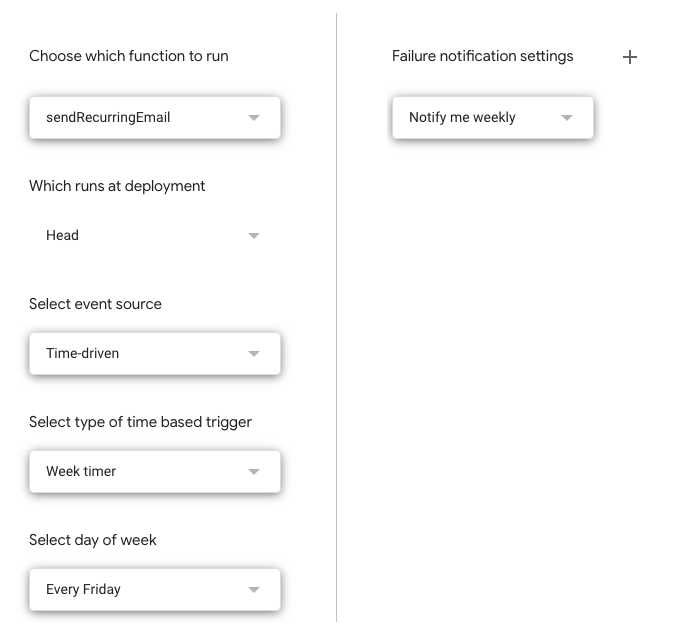
Once you set this up you have your recurring email to your group.